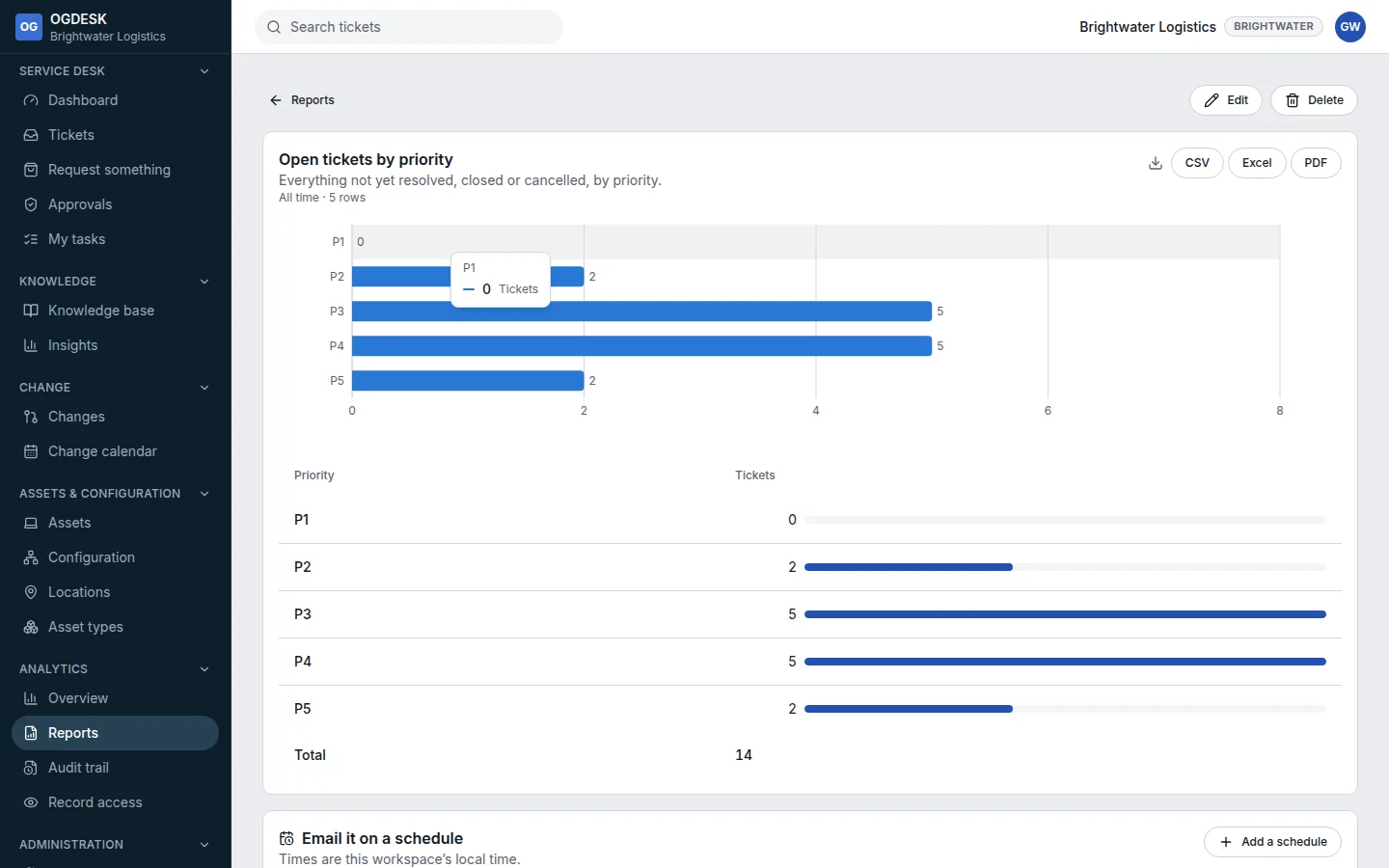
Build, share and schedule a report
Use a ready-made report, or build your own chart in a few clicks and have it emailed on a schedule.
Who can do this:Help Desk Agent (view)Help Desk Administrator (build)
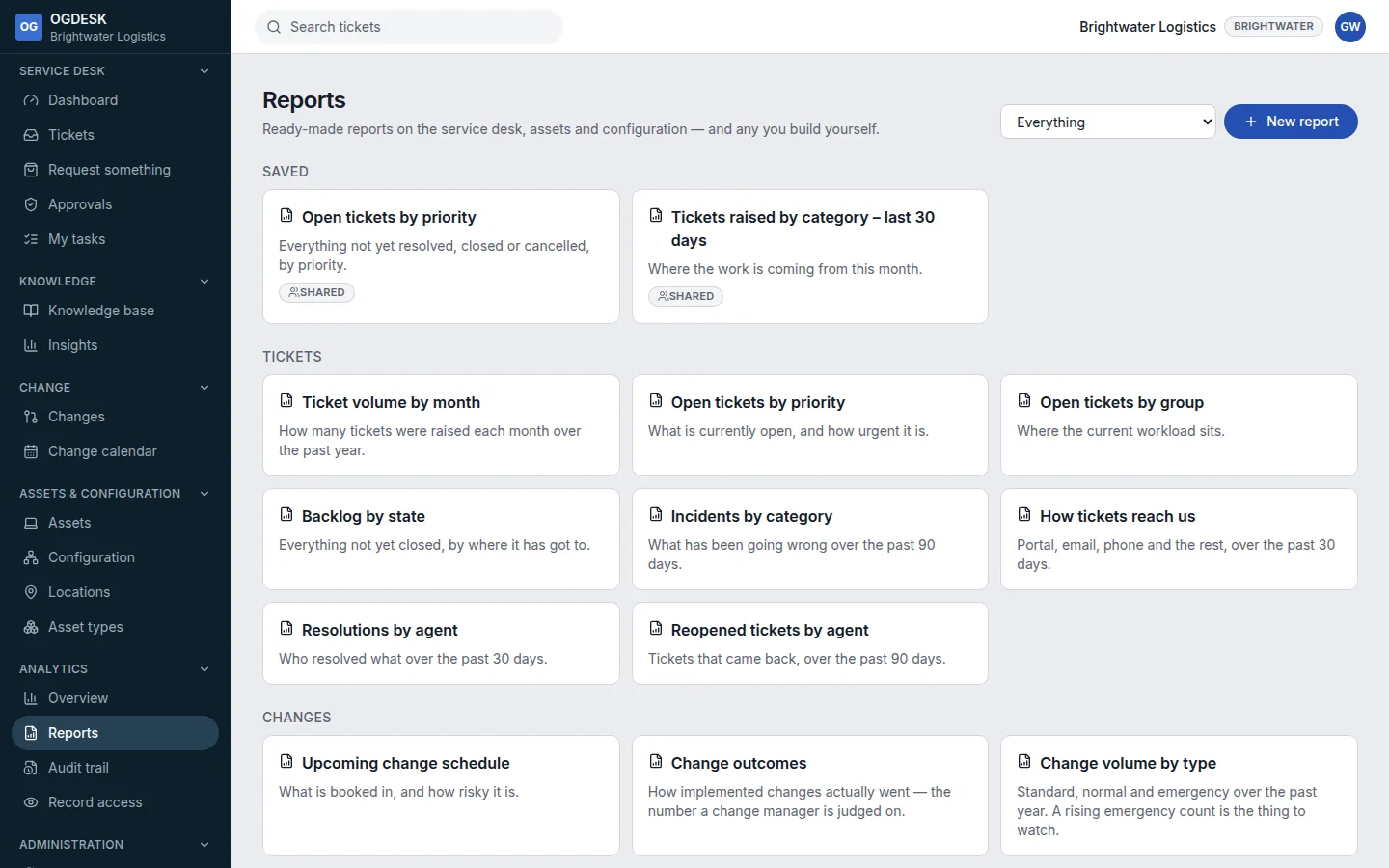
Step 1: Go to Analytics → Reports. Ready-made reports are grouped by subject. Open one to see it.
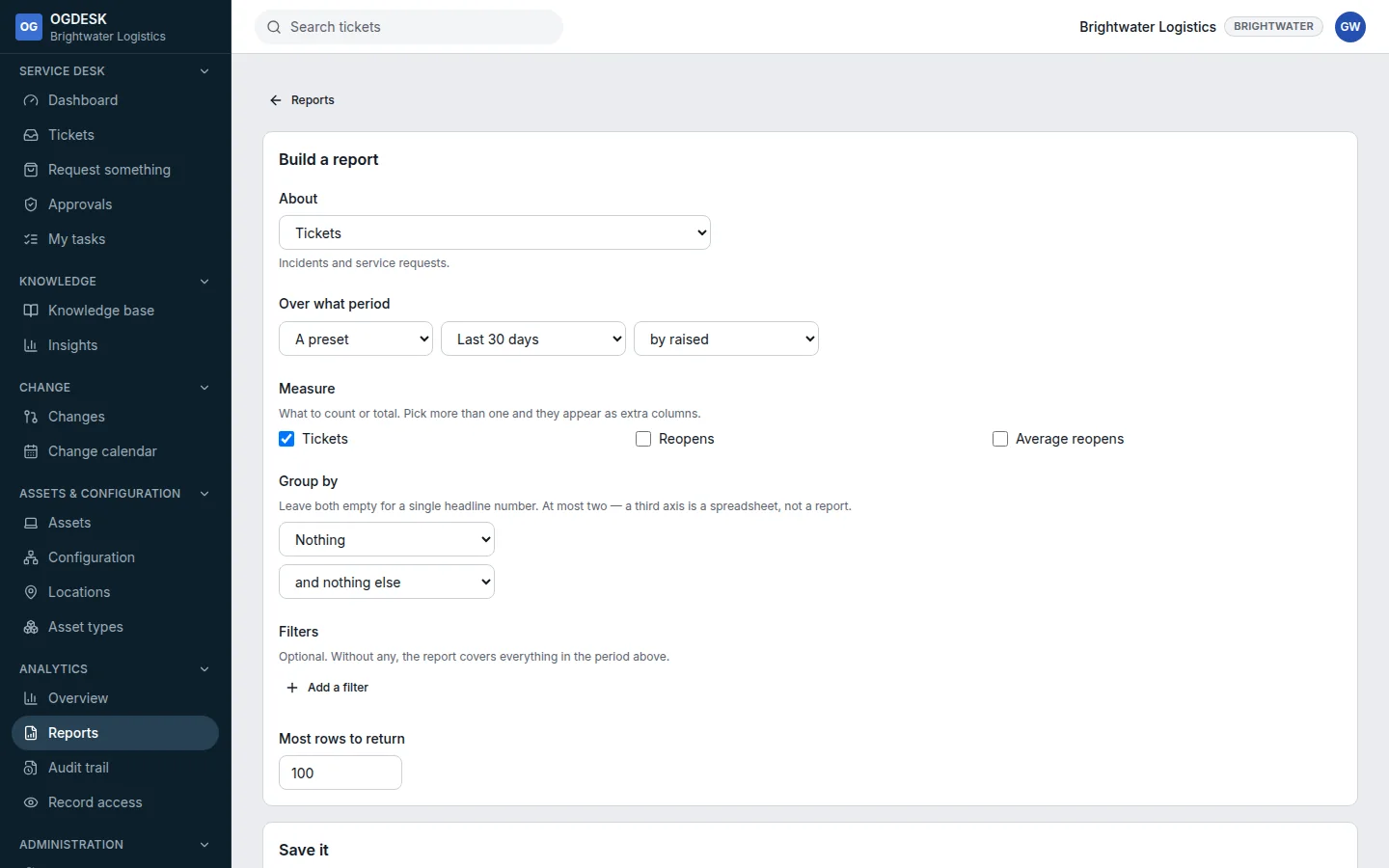
Step 2: To build your own, choose New report. Choose what it is About, a Measure, and what to Group by.
Add Filters and choose Over what period. The preview updates as you go, and OGDESK picks a suitable chart.
Step 3: Under Save it, give it a Name, choose Who can see it, and choose Save report.
Step 4: To have it emailed, open the saved report and use Email it on a schedule → Add a schedule.
Choose how often, what time, the format (CSV, Excel or PDF) and the recipients.