Help Center
Step-by-step guides for setting up your workspace, inviting your team and getting work done in OGDESK. Most guides include a short video.
Start here
Getting started
Create your workspace, sign in and secure your account.
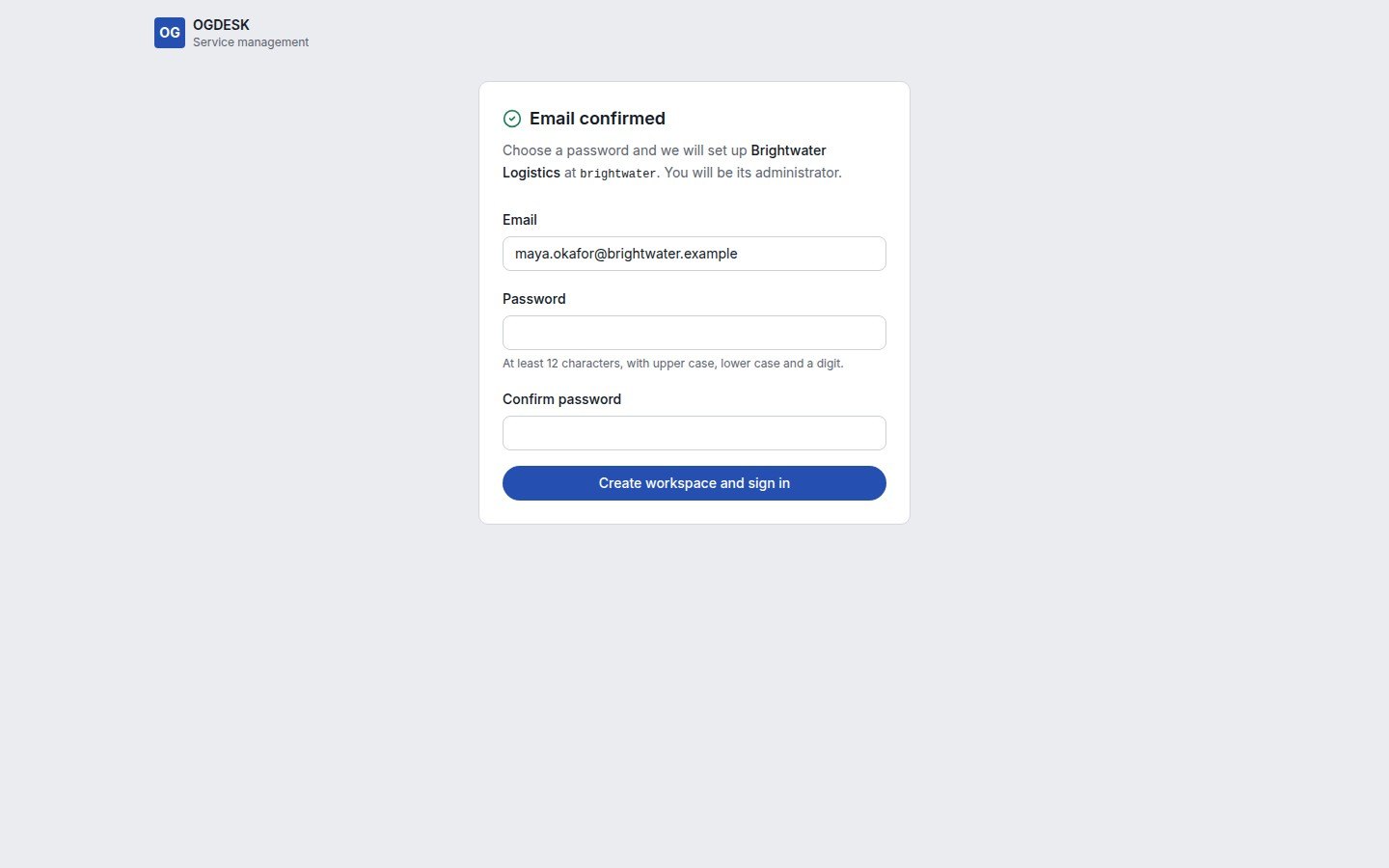
- Create your workspaceStart a free trial, confirm your email address and sign in to your new workspace.Includes a video, 0:35
- Sign in, switch workspace and reset your passwordHow signing in works, what to do when you belong to more than one workspace, and how to get back in if you forget your password.
- Turn on two-factor authenticationProtect your account with an authenticator app, save your recovery codes, and change your password.Includes a video, 0:15
People and access
Invite your team, choose their roles, and set up groups and service levels.
- Invite people to your workspaceAdd a colleague, choose their role, and what they see when the invitation arrives.Includes a video, 0:31
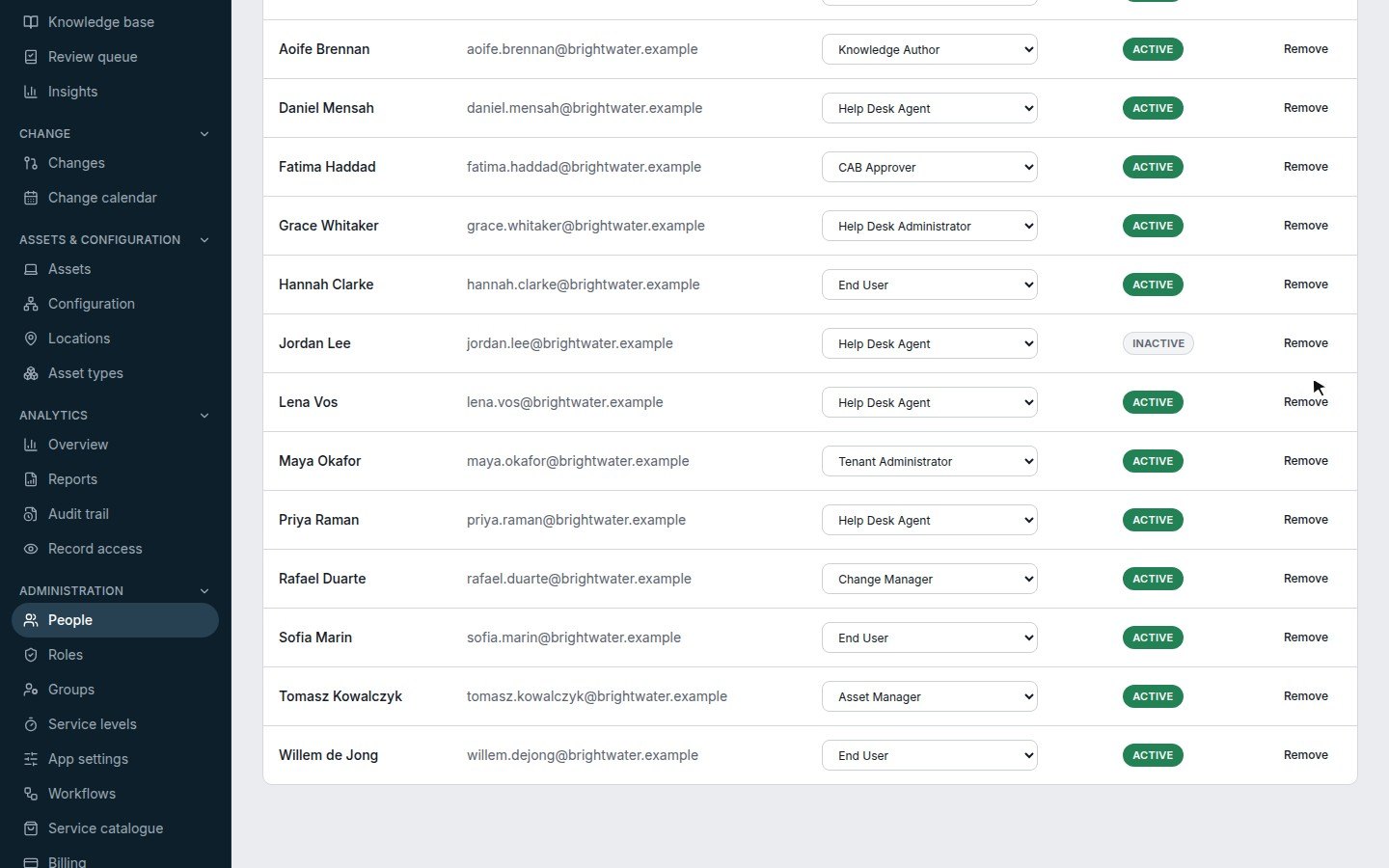
- Change someone’s role or remove themGive a member a different role, or take away their access to the workspace.Includes a video, 0:08
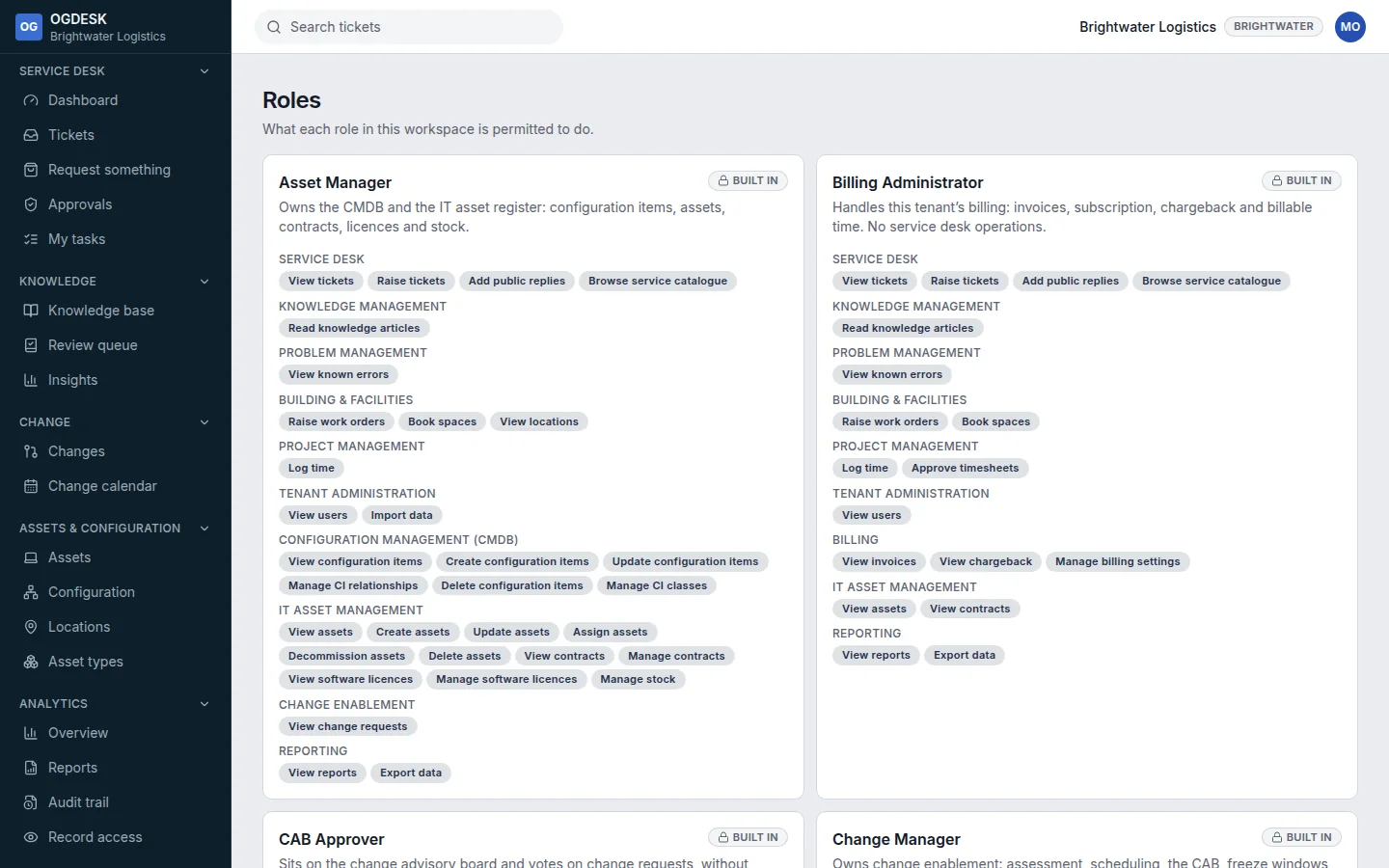
- Roles and permissionsWhat each built-in role can do, so you can choose the right one when you invite somebody.
- Assignment groups and service levelsThe teams work is routed to, and the response and resolution times OGDESK measures.
Tickets
Raise, find, work and resolve incidents and requests.
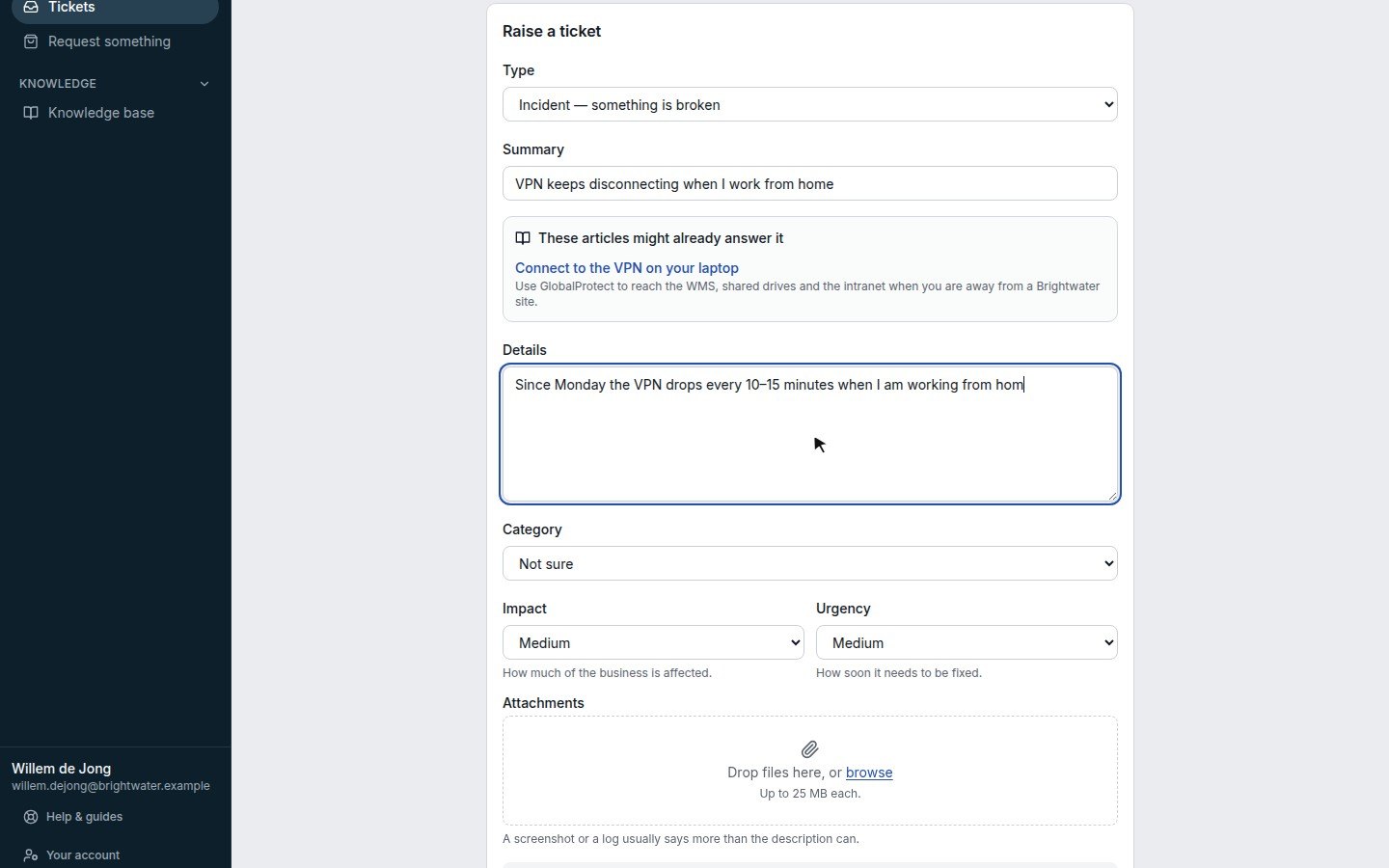
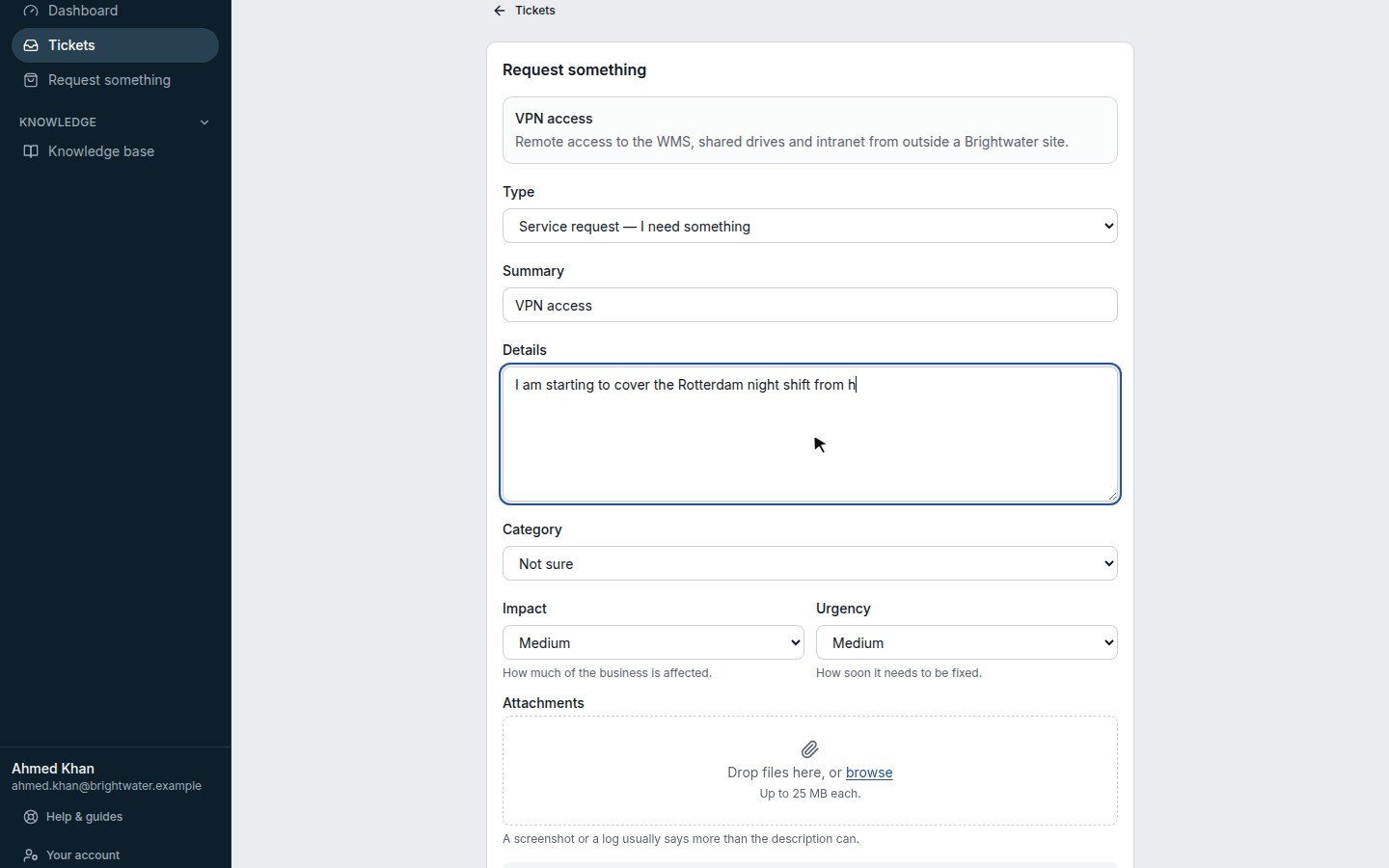
- Raise a ticketReport something broken or ask for help, and follow the ticket until it is fixed.Includes a video, 0:28
- Find tickets in the queueUse views, filters and search to find the work that matters to you.
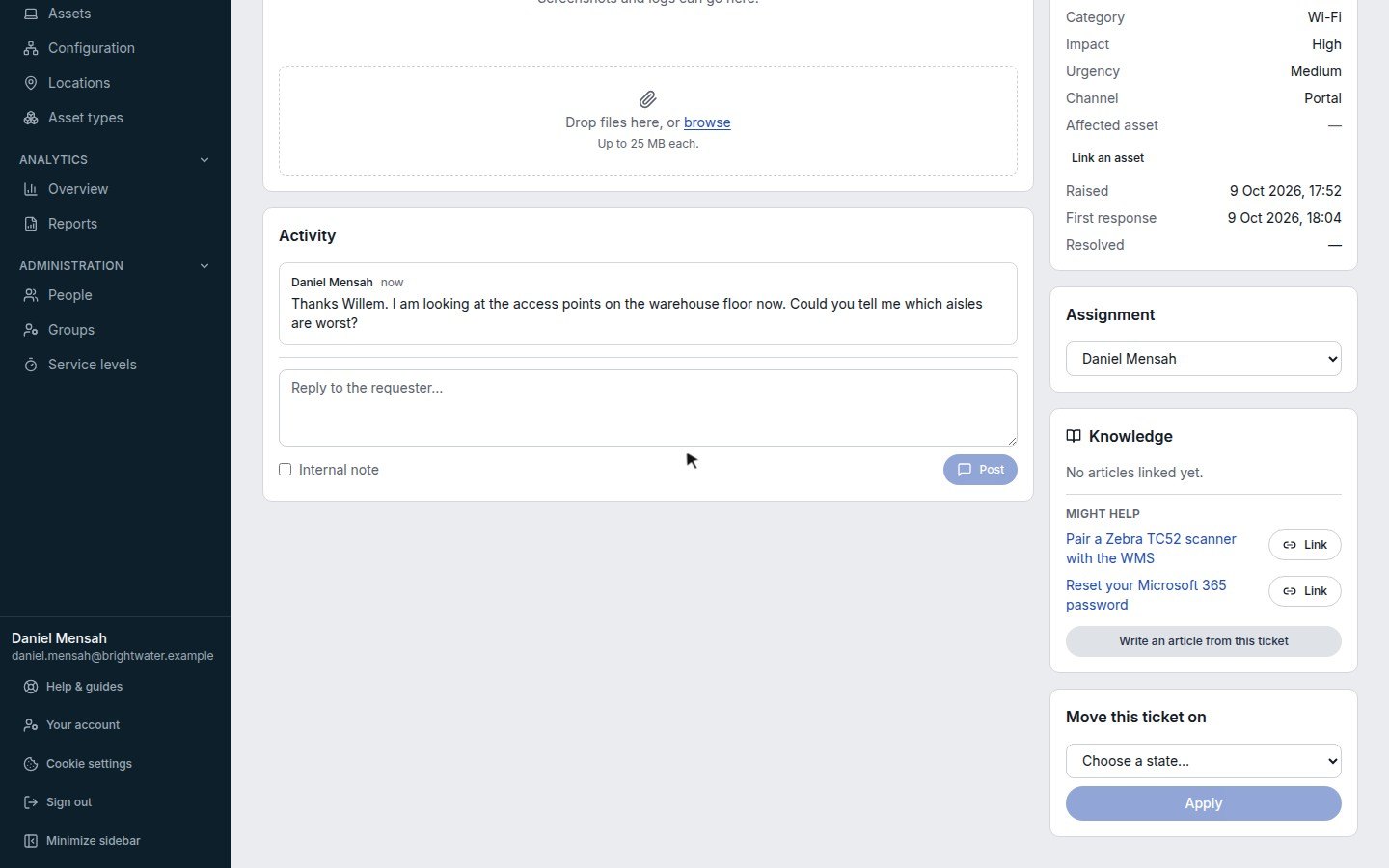
- Pick up and work a ticketAssign a ticket to yourself, reply to the requester, keep internal notes and move it on.Includes a video, 0:41
- Resolve and close a ticketRecord what fixed it, credit the articles you used, and close it off.Includes a video, 0:31
Requests and approvals
The service catalogue, approvals and fulfilment tasks.
- Request something from the catalogueAsk for a laptop, access or software from the list of things your IT team offers.Includes a video, 0:20
- Approve or reject a requestDecide on requests that a workflow has sent to you for sign-off.Includes a video, 0:12
- Work your fulfilment tasksThe steps an approved request hands to you or your team, and how to tick them off.Includes a video, 0:11
Knowledge base
Find answers, and write the articles that stop tickets being raised.
Change
Plan, approve and schedule changes safely.
- Raise and run a changePlan a change, assess its risk, get it approved, schedule it and record how it went.Includes a video, 1:00
- Approve a changeReview a change you have been asked to approve and record your decision.Includes a video, 0:18
- Use the change calendarSee every planned change for the month, and spot clashes before they happen.
Assets and CMDB
Track hardware and map the services that depend on it.
Catalogue and workflows
Decide what people can request, and automate what happens next.
Reports and audit
Measure the service desk and see who changed what.
Workspace settings
Email, security, single sign-on, data and billing.
- Tour of App settingsWhat each tab of App settings controls: email, ticket fields, lifecycle, security, data and more.
- Let people raise tickets by emailConnect a mailbox so emails become tickets and replies land on the right ticket.
- Security and single sign-onRequire two-factor authentication, set session and password rules, and connect your identity provider.
- Import and export dataBring in tickets, assets and articles from another tool, export your data, or copy configuration between workspaces.
- Plans and billingSee your plan and usage, change plan, add a payment method and pay invoices.
- Set up single sign-onLet your team sign in with their work account through Microsoft Entra ID, OneLogin, Duo, Google Workspace, Okta or any OpenID Connect or SAML 2.0 identity provider.Includes a video, 2:57
- Single sign-on with Microsoft Entra ID (Azure AD)Let your team sign in to OGDESK with their Microsoft work account: register OGDESK in Microsoft Entra ID, then connect it here.Includes a video, 2:53
- Single sign-on with OneLoginLet your team sign in to OGDESK through OneLogin: add OGDESK as an OpenID Connect app, then connect it here.Includes a video, 2:48
- Single sign-on with DuoLet your team sign in to OGDESK through Duo Single Sign-On: add OGDESK as a Generic OIDC Relying Party, then connect it here.Includes a video, 2:48