Let people raise tickets by email
Connect a mailbox so emails become tickets and replies land on the right ticket.
Who can do this:Tenant Administrator
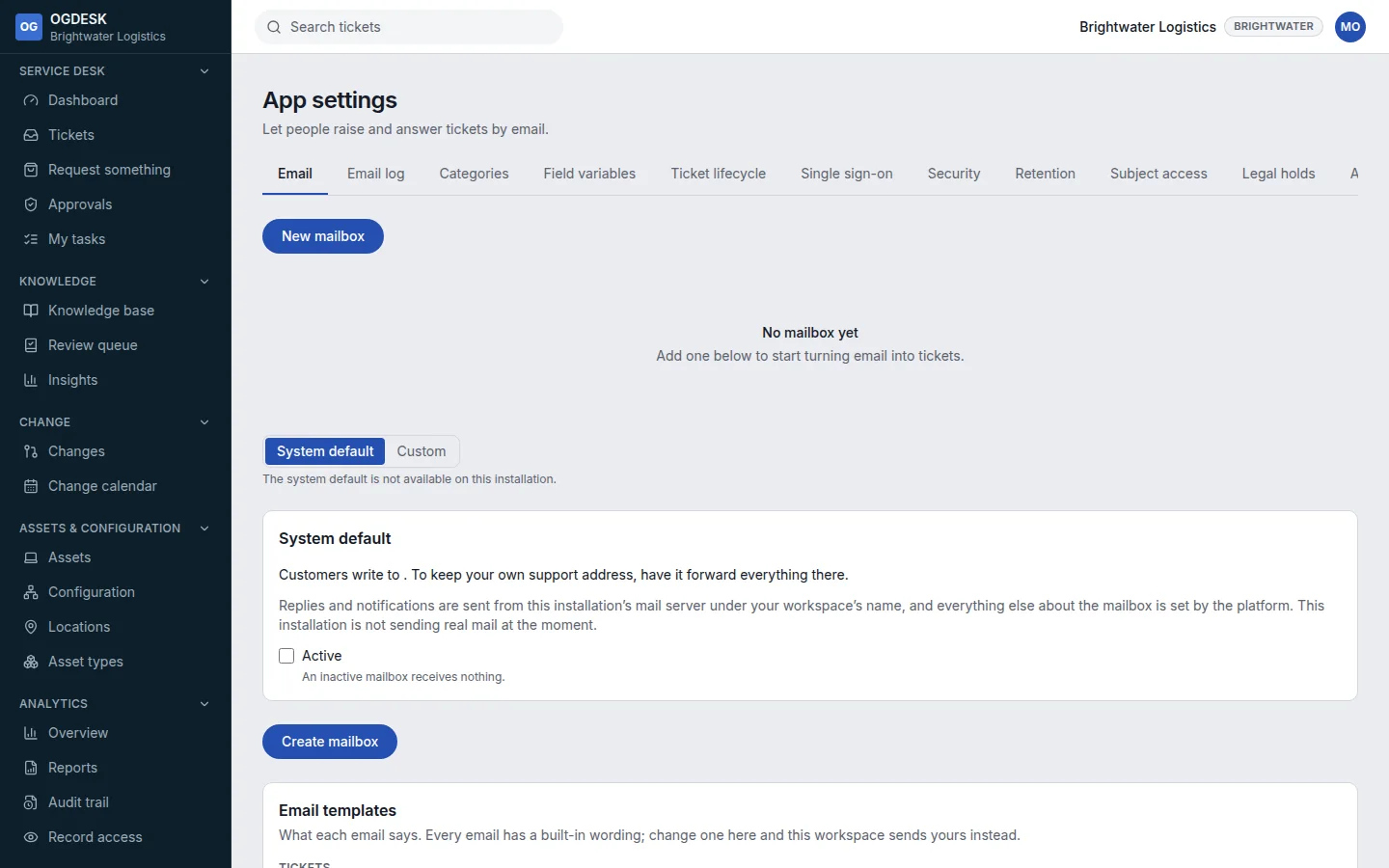
Step 1: Go to App settings → Email and choose New mailbox.
Step 2: Where your installation offers System default, it is the simplest setup: forward your own support address (for example support@yourcompany.com) to the workspace address shown. Otherwise choose Custom.
Step 3: With Custom, connect your own mailbox: We poll a mailbox over IMAP, or A provider posts to us (Mailgun, Postmark or a signed webhook). Add SMTP details under sending, or leave them blank to send through OGDESK.
Step 4: Under the behaviour settings, decide whether to create requesters for people you do not know, which sender domains to accept, which ticket type emails become, and whether replies reopen closed tickets.
Step 5: Choose Create mailbox, then Test connection and Check for mail now.
- New mail becomes a ticket marked Raised by email. Replies are matched to the existing ticket.
- A reply to a resolved ticket moves it back to In progress.
- Email log shows every message and whether it was processed, ignored or failed.
- Under Email templates you can reword any email OGDESK sends, and choose Send test to me.