Turn on two-factor authentication
Protect your account with an authenticator app, save your recovery codes, and change your password.
Who can do this:Everyone
Everything about your own sign-in lives on Your account, at the bottom of the sidebar. With two-factor authentication on, somebody who learns your password still cannot get in without your phone.
Set up an authenticator app
Step 1: In the sidebar, choose Your account.
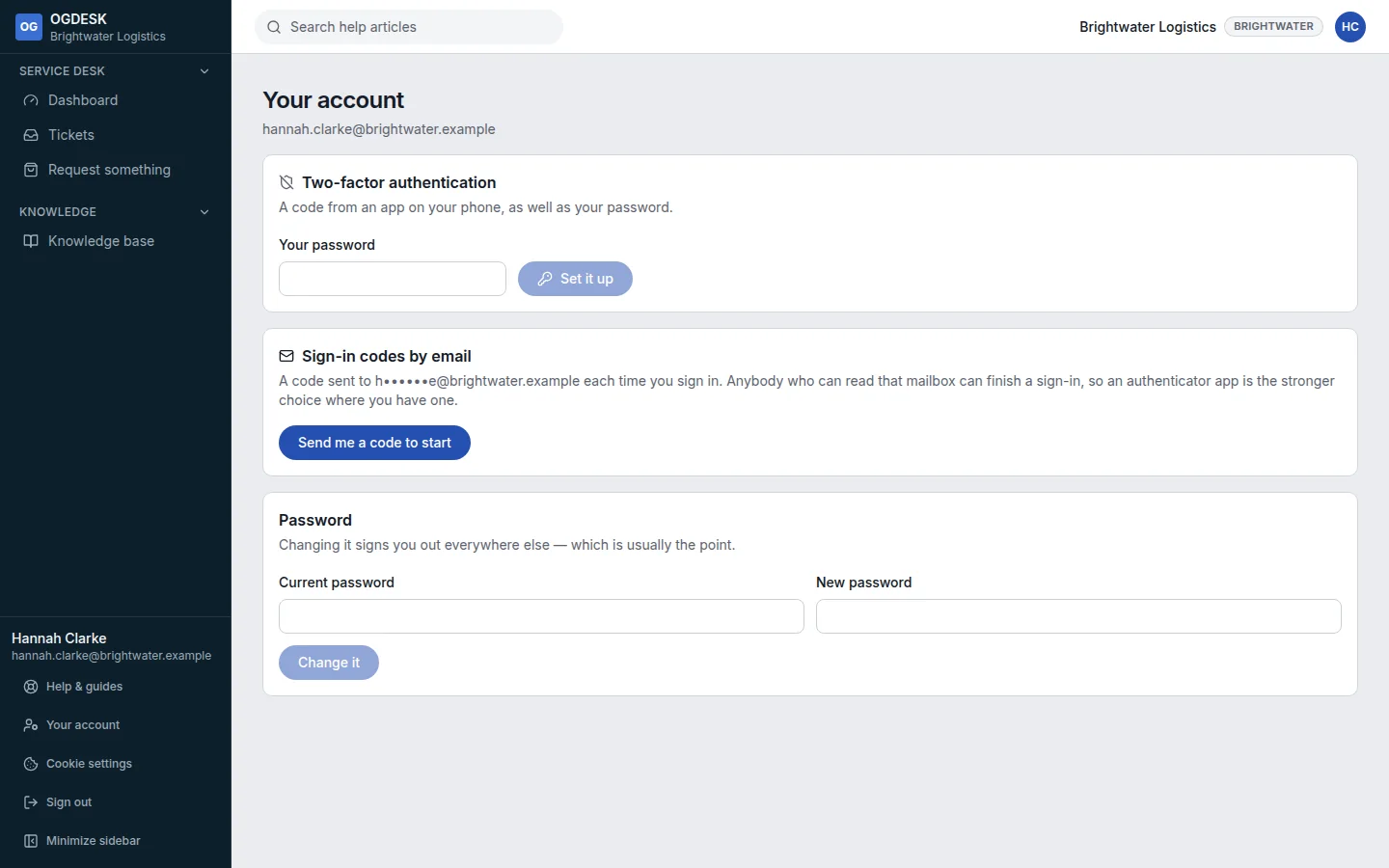
Step 2: Under Two-factor authentication, type Your password and choose Set it up.
Step 3: Scan the QR code with an authenticator app such as Microsoft Authenticator, Google Authenticator or 1Password.
If you cannot scan it, type the setup key shown under Can’t scan it? Enter this setup key instead into the app.
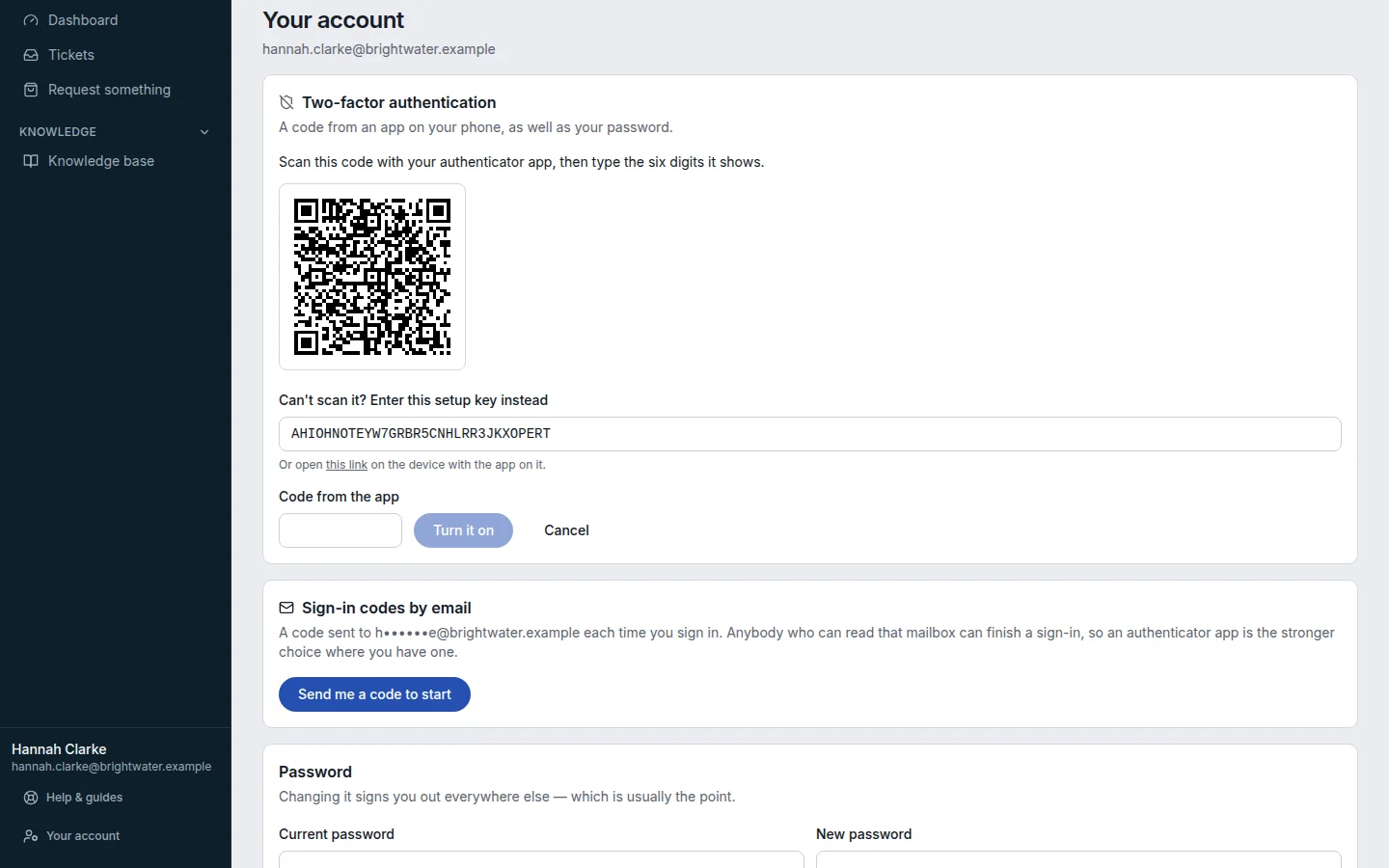
Step 4: Type the six digits the app shows into Code from the app and choose Turn it on.
Step 5: Save the ten recovery codes. They are shown once. Choose Copy all and keep them in a password manager.
Each code works once, in place of the app, if you lose your phone.
Sign-in codes by email
If you cannot use an authenticator app, Sign-in codes by email sends a code to your inbox at each sign-in instead. Choose Send me a code to start, type the code, and choose Turn on. It is weaker than an app, because anybody who can read your email can use it.
Change your password
Under Password, type your Current password and a New password, then choose Change it. Every other session you have open is signed out.