Sign in, switch workspace and reset your password
How signing in works, what to do when you belong to more than one workspace, and how to get back in if you forget your password.
Who can do this:Everyone
Sign in
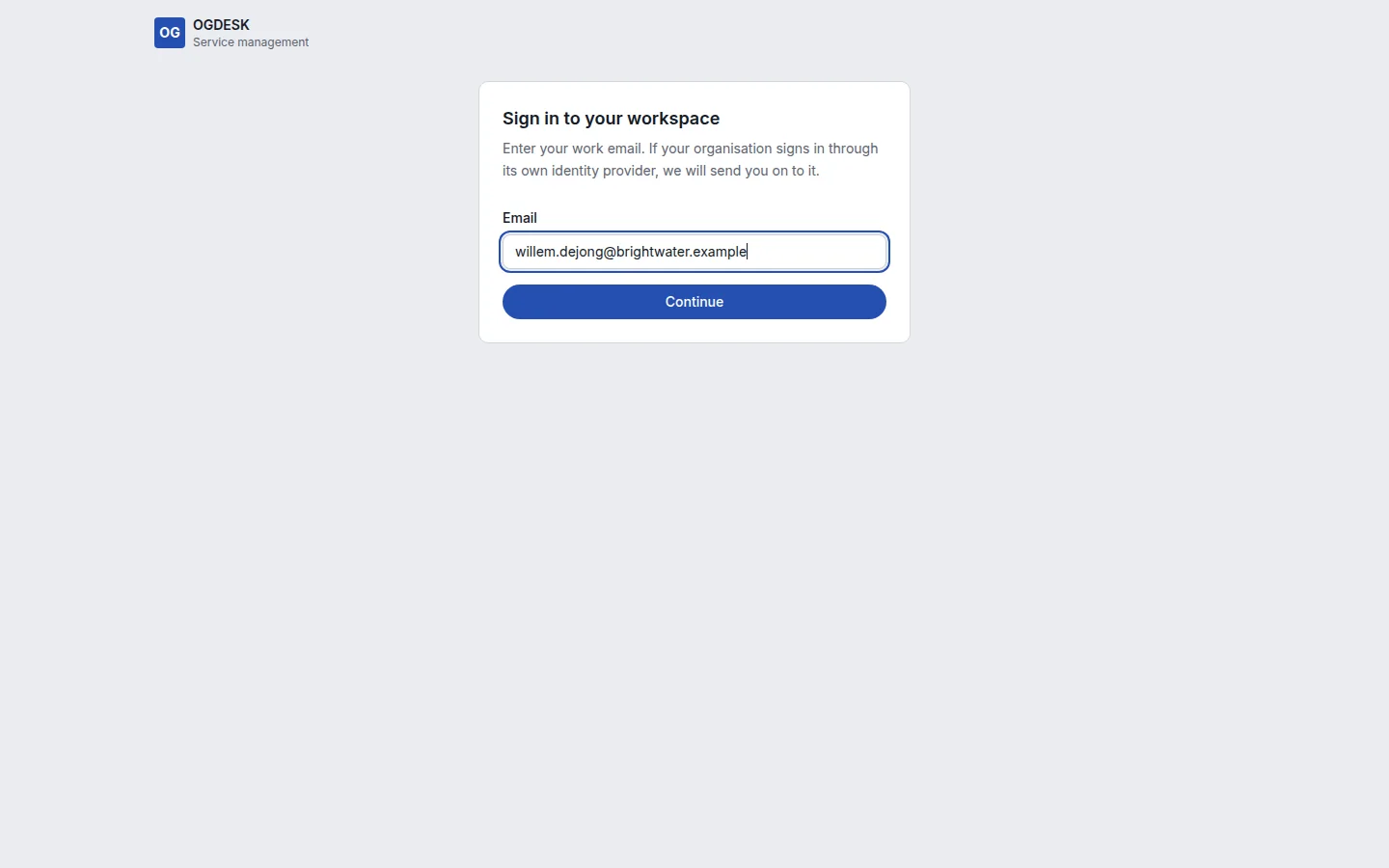
Step 1: Open your OGDESK address and choose Sign in. Type your Email and choose Continue.
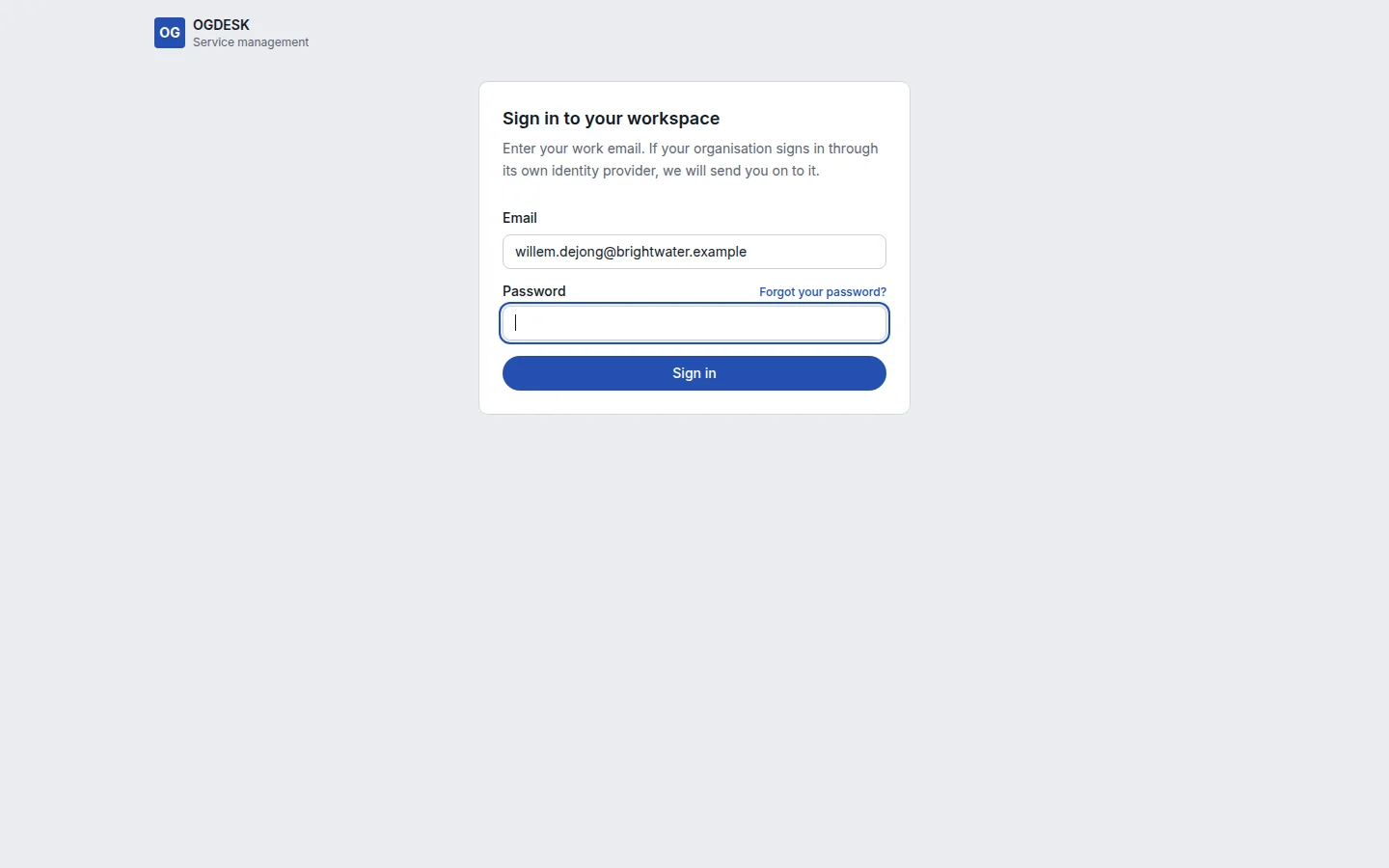
Step 2: Type your Password and choose Sign in.
If your workspace uses single sign-on, you see a Sign in with … button instead, and your organisation’s own sign-in page takes over.
Step 3: If you have two-factor authentication turned on, type the six-digit Authentication code from your app.
Lost your phone? Choose Use a recovery code instead and type one of the recovery codes you saved when you set it up.
If you belong to more than one workspace
After signing in you see Choose a workspace, with a card for each workspace and the roles you hold there. Choose Open on the one you want. To move to another one later, open the menu under your initials in the top right and choose Switch workspace.
Forgot your password
Step 1: On the sign-in page, after typing your email, choose Forgot your password?
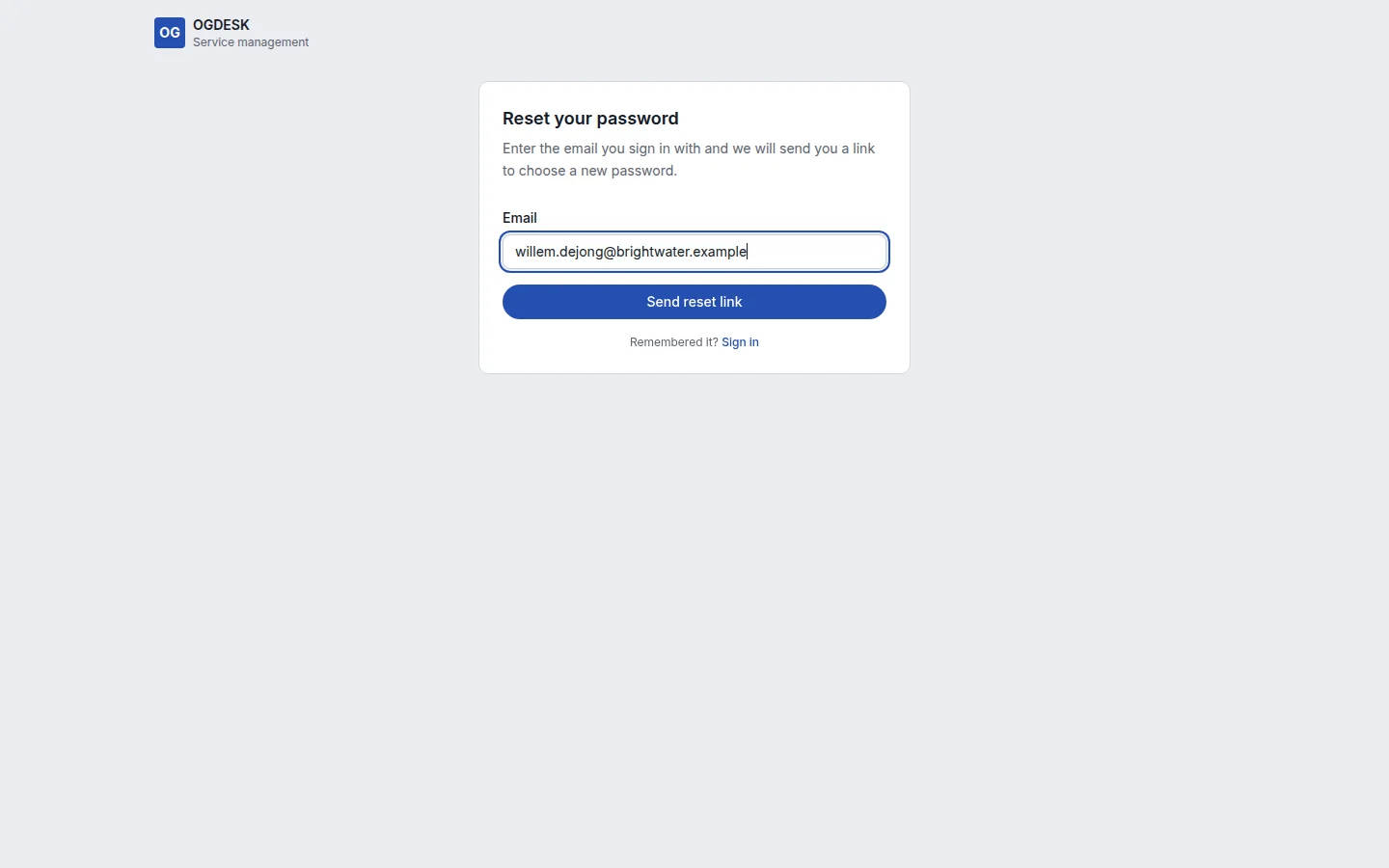
Step 2: Type your Email and choose Send reset link.
Step 3: Open the link in the email (it works once, for an hour), choose a New password, type it again, and choose Change password.