Raise and run a change
Plan a change, assess its risk, get it approved, schedule it and record how it went.
Who can do this:Change ManagerHelp Desk Agent (draft only)
Raise it
Step 1: Go to Changes and choose Raise a change.
Step 2: Under What is changing, choose the Type, then fill in the Title, What is being done and Why.
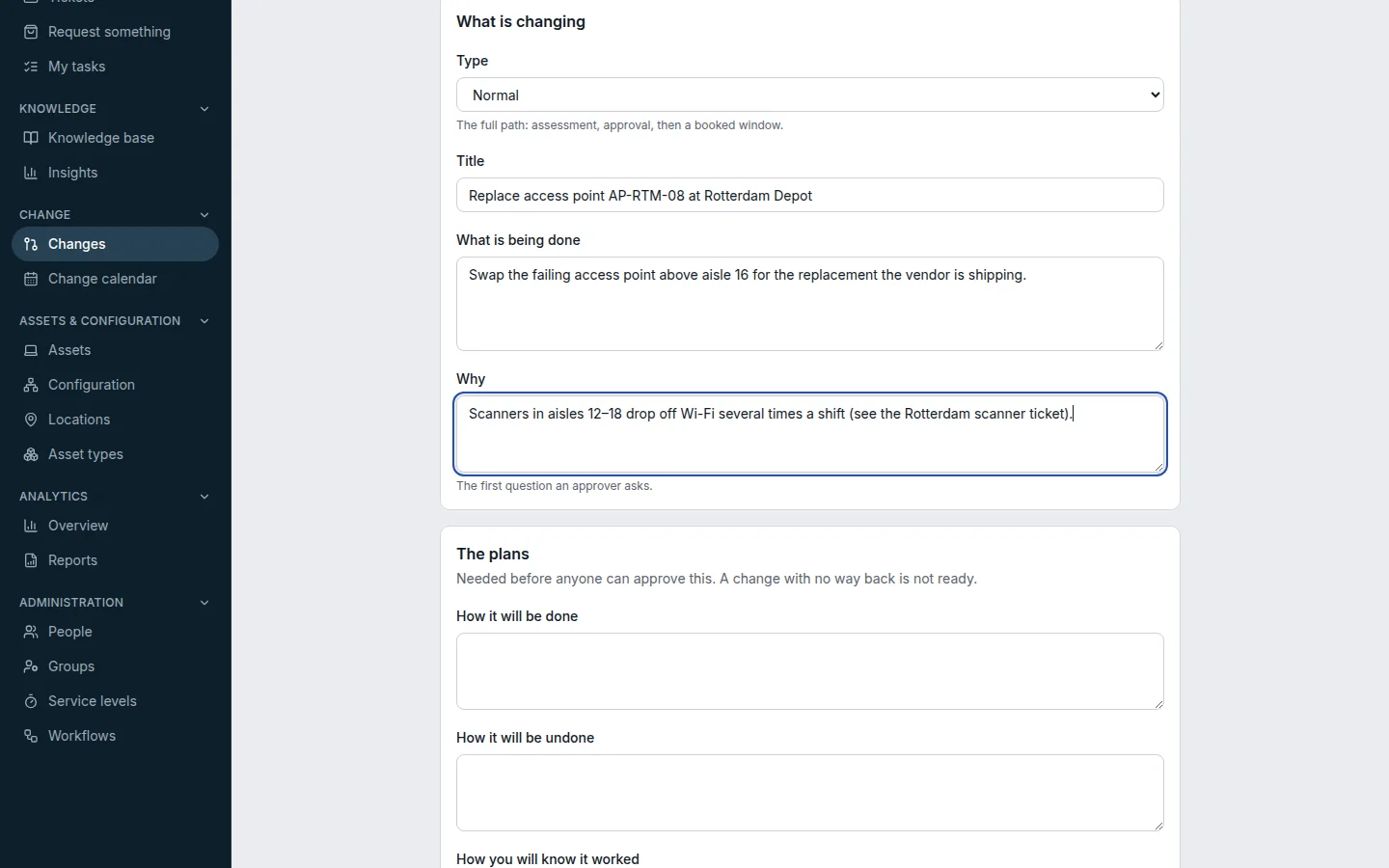
Step 3: Under The plans, describe How it will be done, How it will be undone and How you will know it worked.
You can save without them, but a normal change cannot go for approval until all three are filled in.
Step 4: Set Impact if it fails and Likelihood of failure. OGDESK shows the Resulting risk.
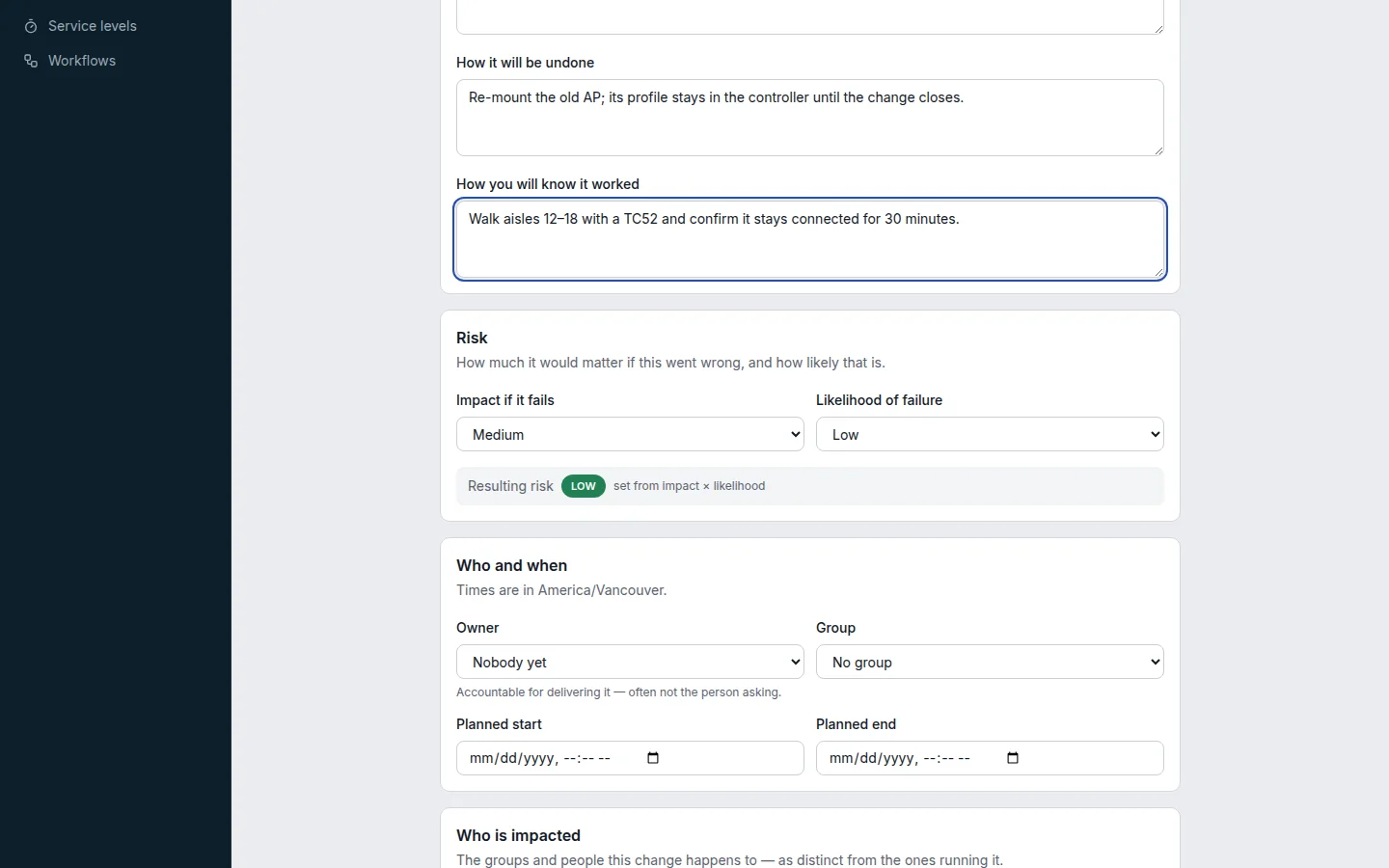
Step 5: Under Who and when, choose an Owner and Group, and the Planned start and Planned end. Under Who is impacted, add the groups or people to keep informed.
Step 6: Choose Raise change. It is created as a Draft.
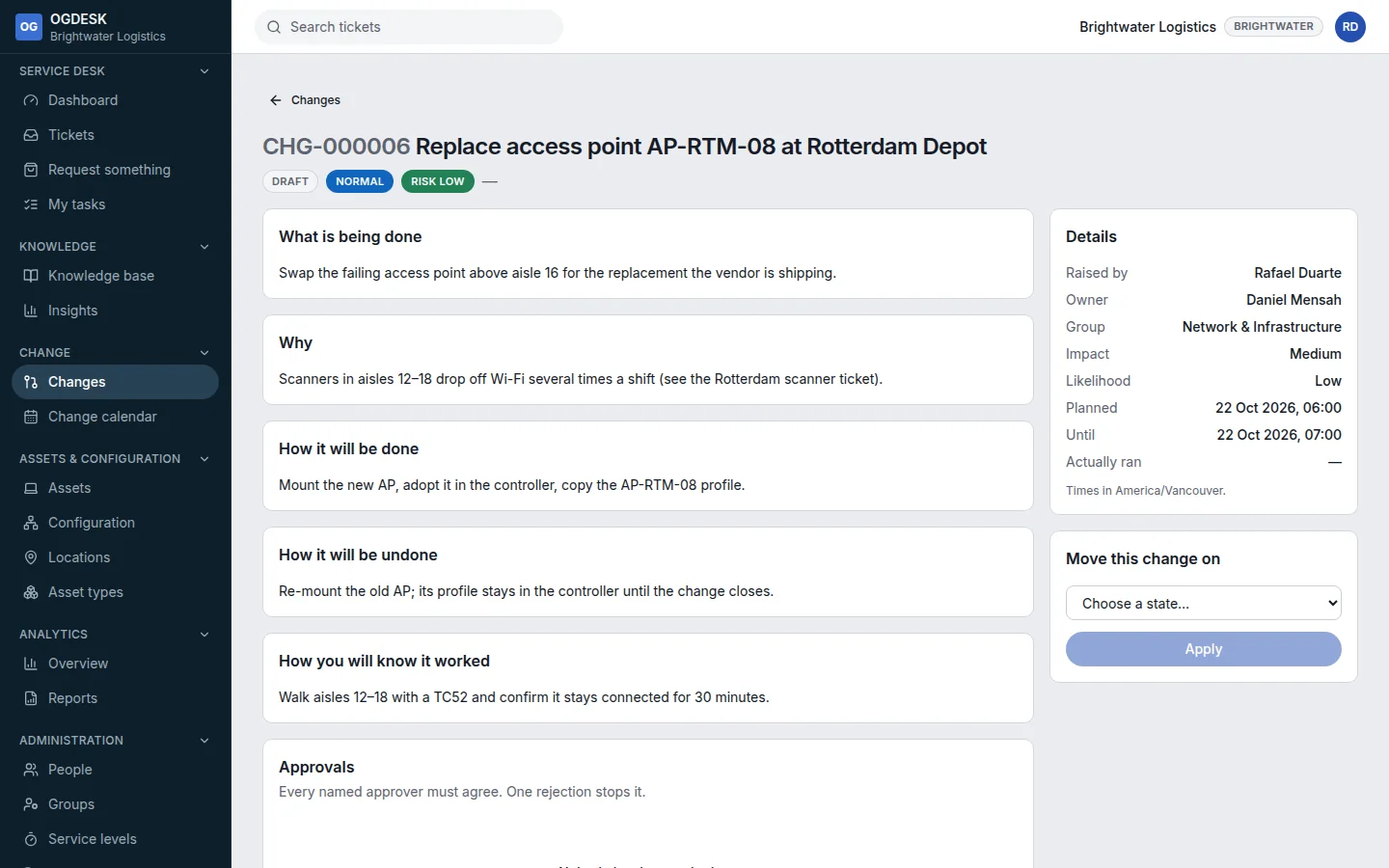
| Type | Path |
|---|---|
| Normal | Draft → Assessing → Awaiting approval → Approved → Scheduled → Implementing → Implemented → Review → Closed. |
| Standard | Pre-approved and routine: Draft → Scheduled → Implementing → Implemented → Closed. Change Managers only. |
| Emergency | Skips assessment and scheduling but still needs approval, and its review is compulsory. Change Managers only. |
Take it through approval to done
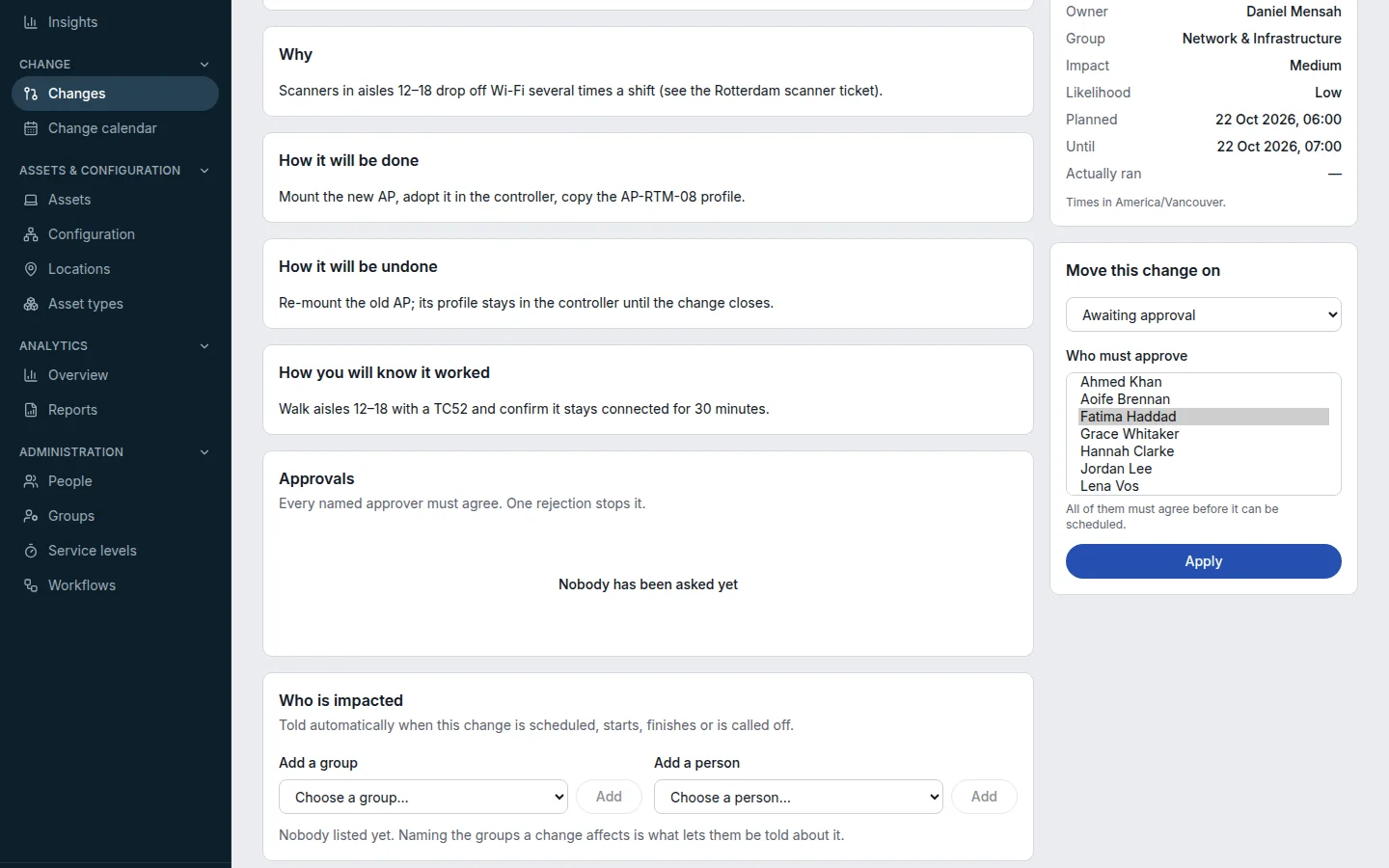
Step 1: Under Move this change on, choose Assessing and Apply. Then choose Awaiting approval and pick Who must approve.
Every named approver must agree, and one rejection stops it. The requester and the owner cannot approve their own change.
Step 2: When all the approvers agree, the change becomes Approved. Choose Scheduled and confirm the window.
Step 3: On the day, move it to Implementing, then Implemented, and say How did it go?
Step 4: Finally move it to Review, write the Post-implementation review, and choose Closed.