Pick up and work a ticket
Assign a ticket to yourself, reply to the requester, keep internal notes and move it on.
Who can do this:Help Desk Agent
Pick it up
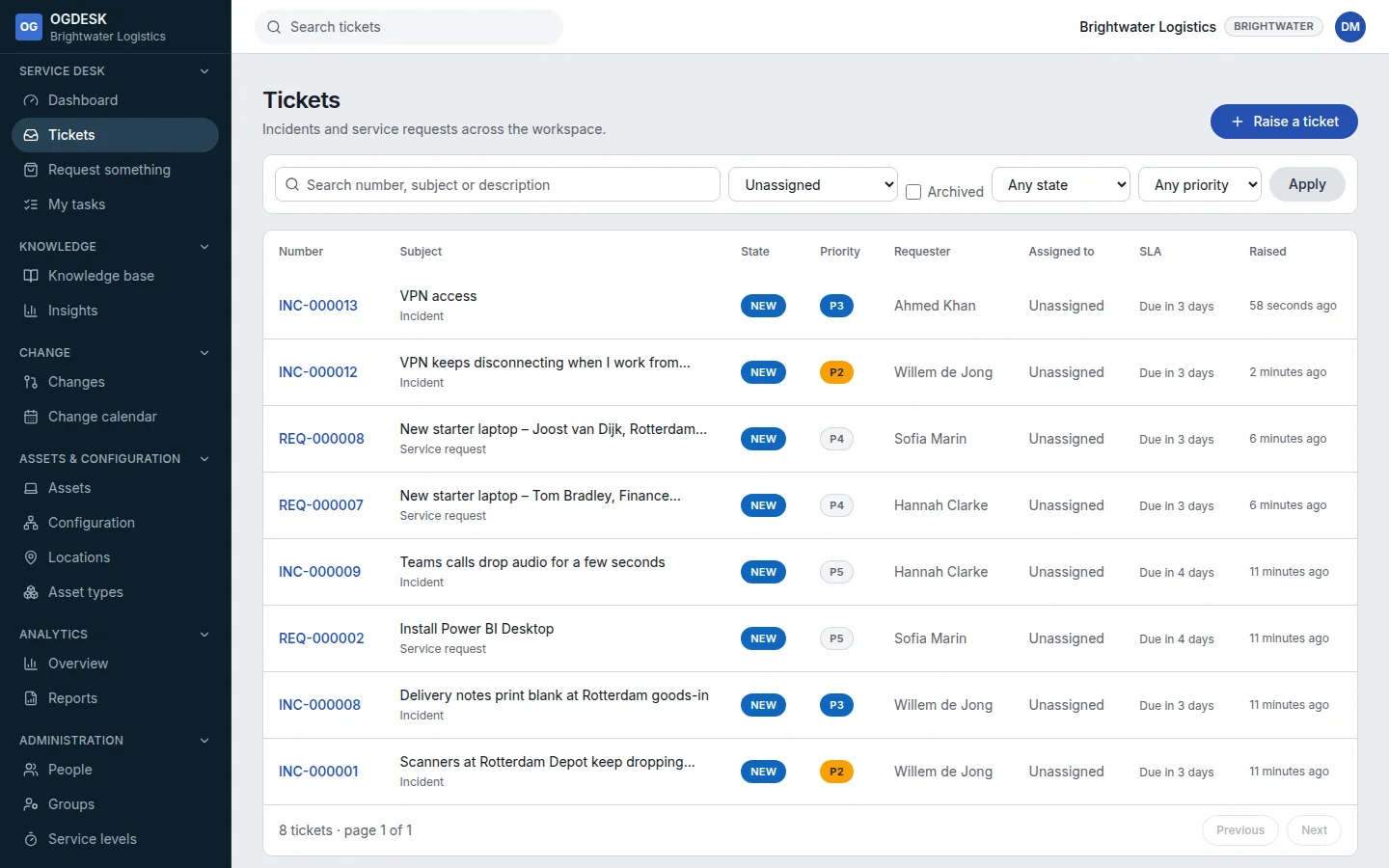
Step 1: In Tickets, choose View → Unassigned and open the ticket.
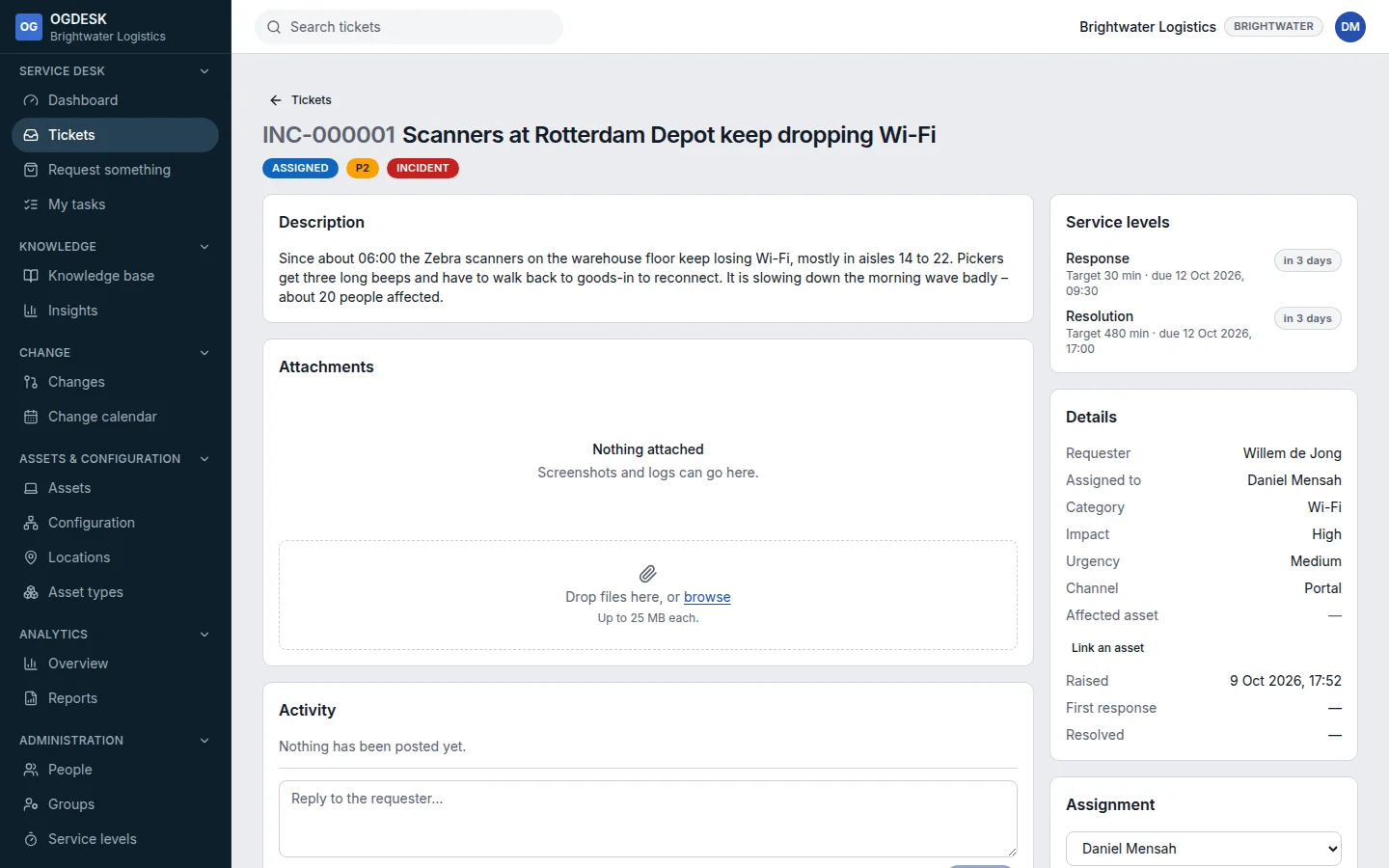
Step 2: Under Assignment, choose Assign to me. The ticket moves from New to Assigned, and the requester is told who has it.
Reply, or leave a note for the team
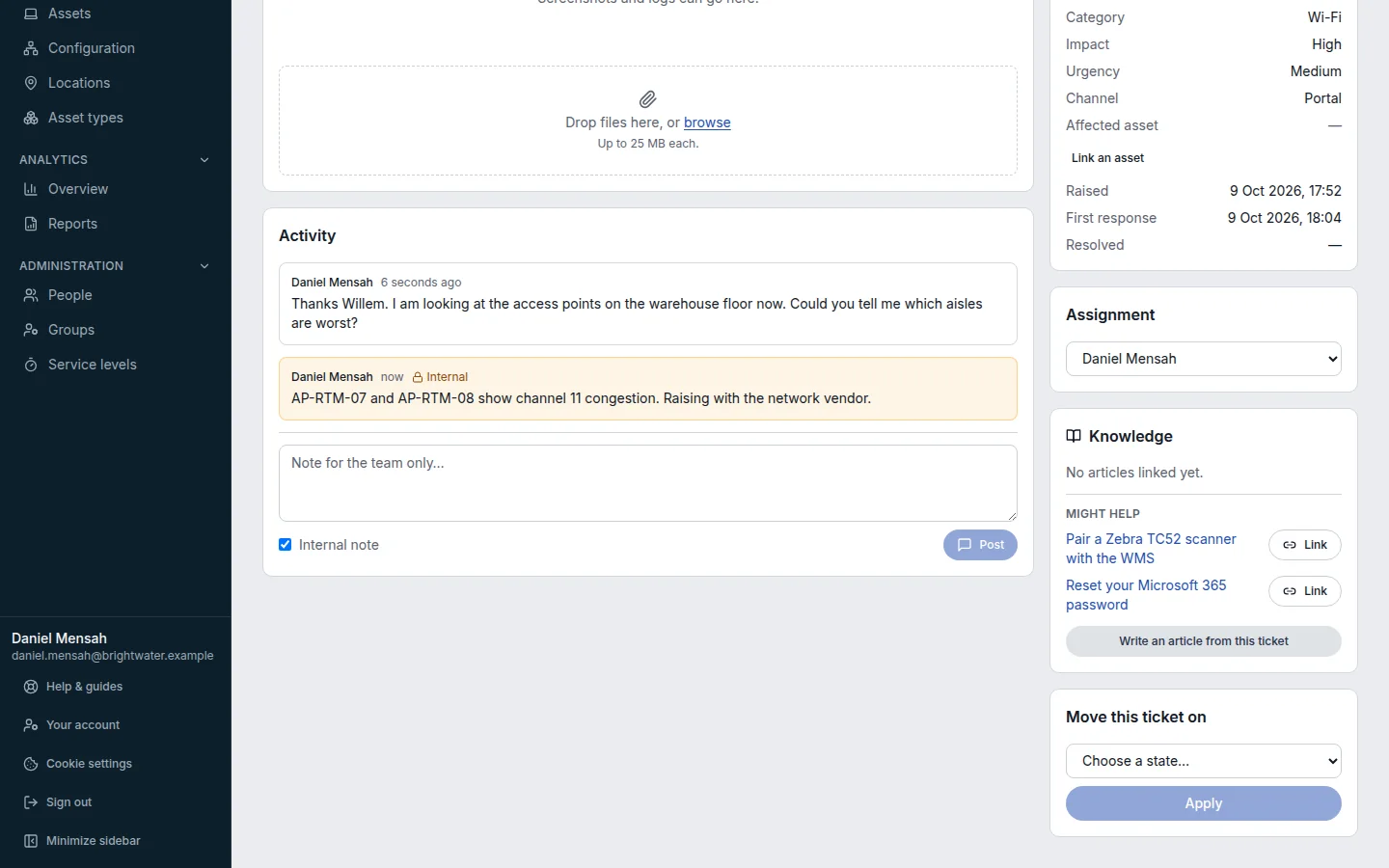
Step 1: Write in Reply to the requester… and choose Post. The requester is emailed your reply.
Your first reply meets the ticket’s response target.
Step 2: To write something only your team should see, tick Internal note first. Notes are highlighted and never emailed to the requester.
Move it on
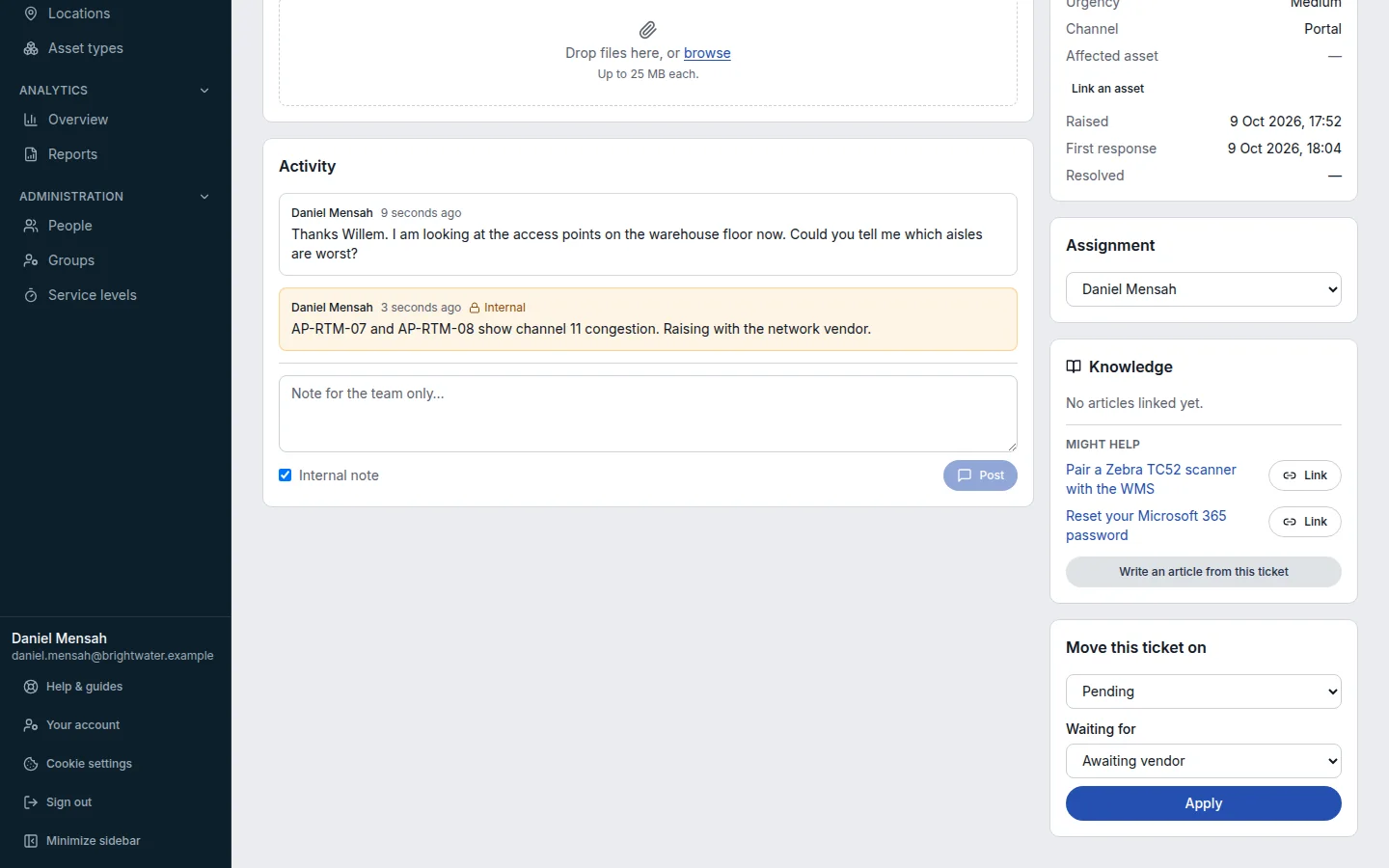
Use Move this ticket on: choose a state and Apply.
| State | Use it when |
|---|---|
| In progress | You are actively working on it. |
| Pending | You are waiting on somebody else. Choose Waiting for: the customer, a vendor, a change, parts, or a scheduled date. The service level clocks pause. |
| On hold | Work is paused for another reason. The clocks pause too. |
| Resolved | It is fixed. See Resolve and close a ticket. |
| Cancelled | It was raised in error or is no longer needed. |
- Link the equipment involved with Link an asset under Details, so its history builds up.
- The Knowledge card suggests articles that might help. Choose Link to attach one, or Write an article from this ticket once you have solved something new.
- A reply from the requester does not take a ticket out of Pending by itself. Move it back to In progress when you pick it up again.